For the founder whose Postgres lives on Neon
An admin panel for your Neon database in under a minute
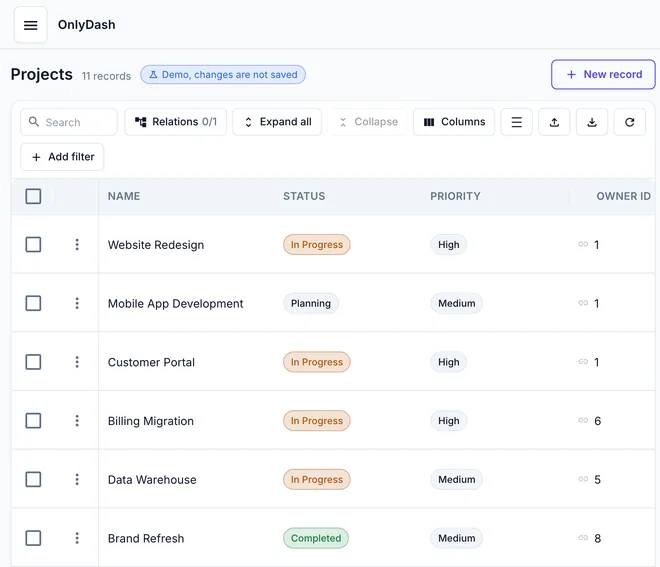
Neon gives you serverless Postgres and a SQL editor. Your support and ops people need a table they can filter and edit. Paste the Neon connection string and OnlyDash builds that table for every table you have.
Three steps
- 1
Paste the connection URL
In the Neon console open your project, click Connect, pick the branch and role, and copy the connection string. Keep sslmode=require on the end.
- 2
Get the panel
OnlyDash reads the schema, samples up to 1,000 rows per table, and builds a table view, filters and an edit form for every table. A 43-table schema takes about 20 seconds.
- 3
Hand the link to a teammate
Click Create invite link and send it. They open the tables you connected, no SQL client and no database password.
A Neon connection string looks like this
postgresql://app_admin:[email protected]/neondb?sslmode=requireBefore you paste
- Pick the branch
- Each Neon branch has its own host. Connect the production branch for the team panel, or a dev branch to try it first.
- Cold starts
- A Neon compute that scaled to zero wakes on the first query, so the first analysis can take a few seconds longer.
- Use a scoped role
- Create a Neon role with access to the tables your team needs instead of handing over the owner role.
- Which schema
- OnlyDash reads public by default. Add ?schema=name to the string for another schema.
See it on a real schema first
The guest demo runs on a 43-table Postgres database. Read-only, nothing to install.
Free for one database and one teammate. $39/month per database after that.